Step 1: Obtain MoMoProxy Credentials
1. Sign up for MoMoProxy service and buy a plan.
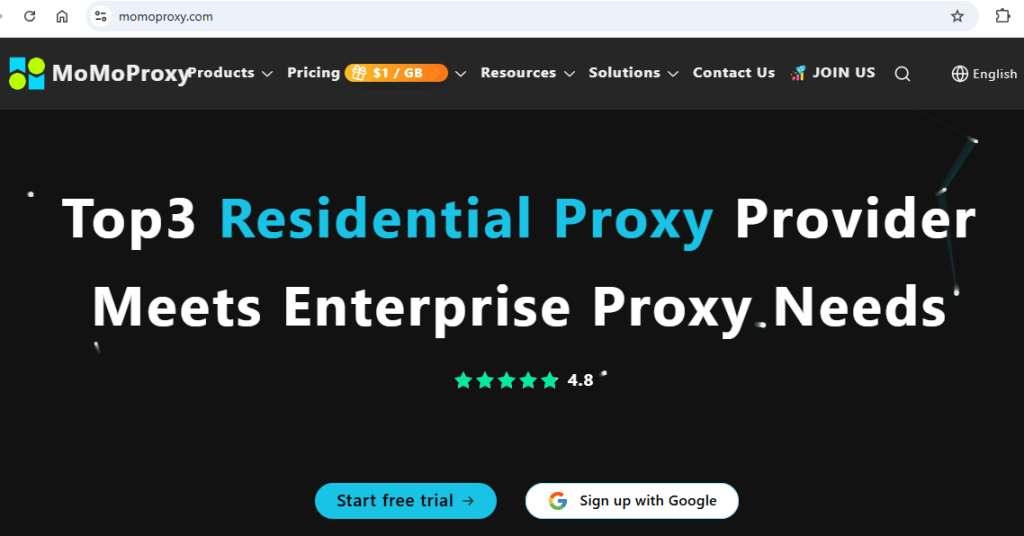
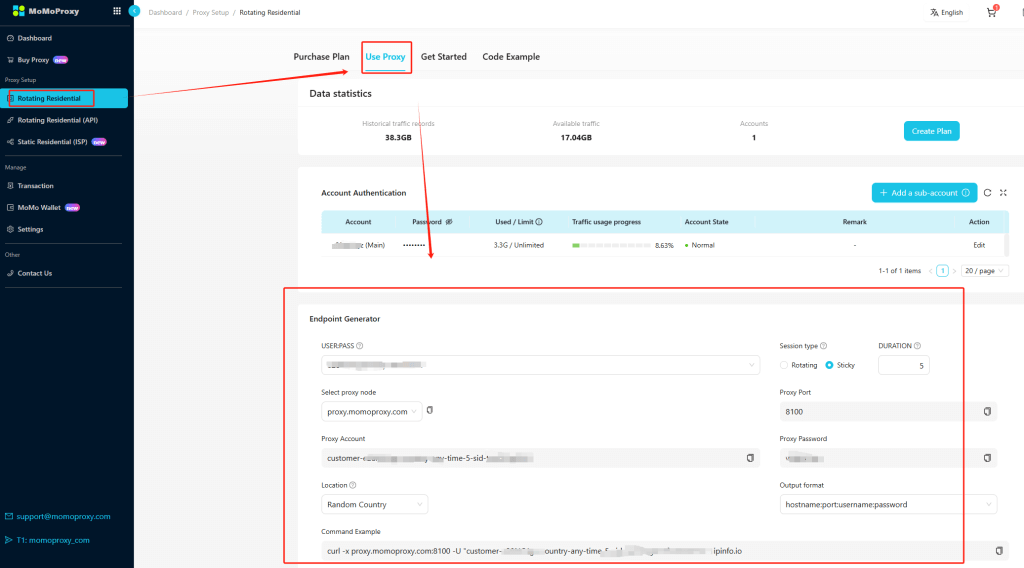
2. Note your authentication credentials (username/password or API key).
3. Select your proxy plan (static or rotating residential IPs).
4. Generate or copy the proxy details.
Step 2: Add Proxy to VMLogin
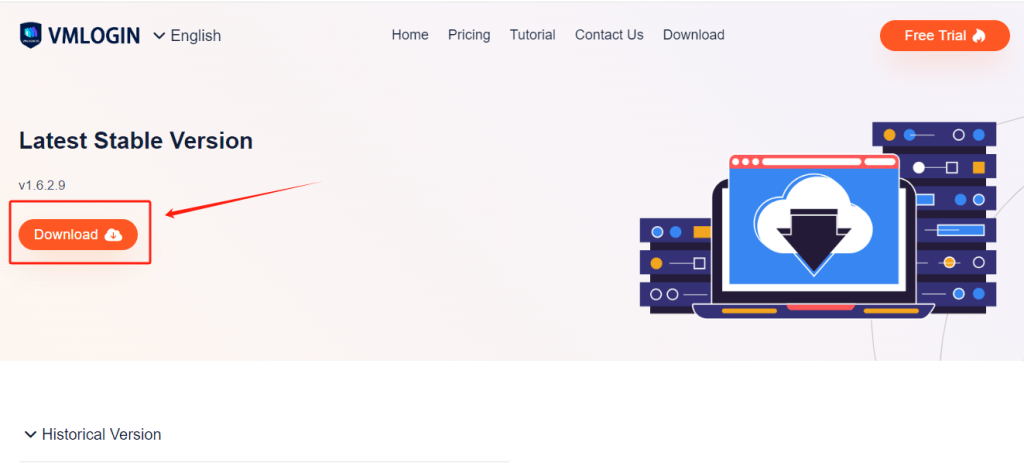
1. Visit the official VMLogin website.
2. Download and install VMLogin (Support 3-day Free Trial).
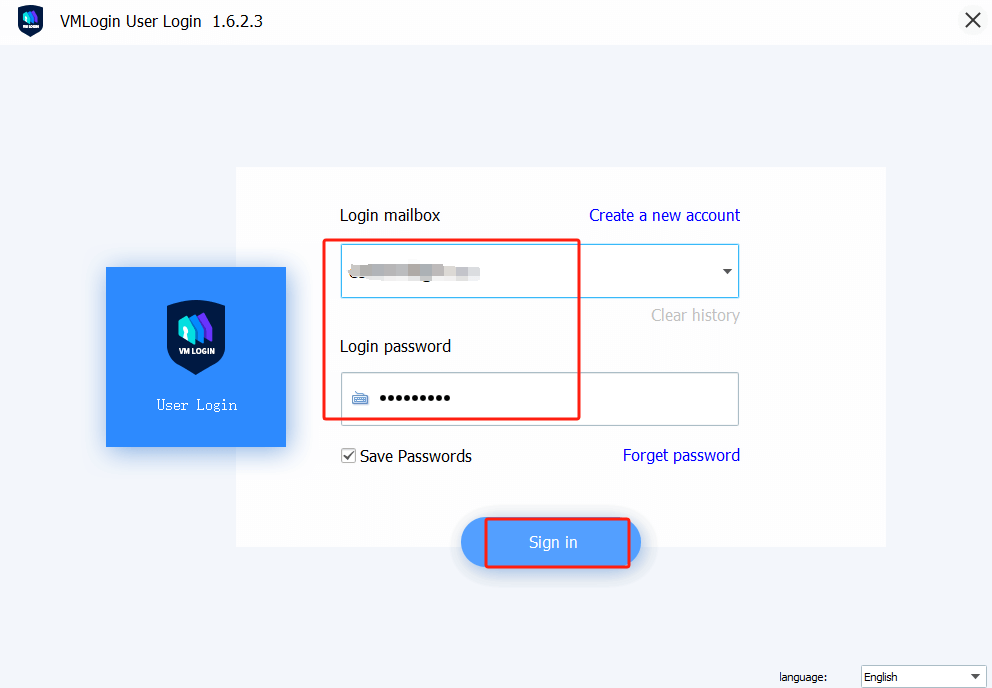
3. Launch the VMLogin client and log in to your account.
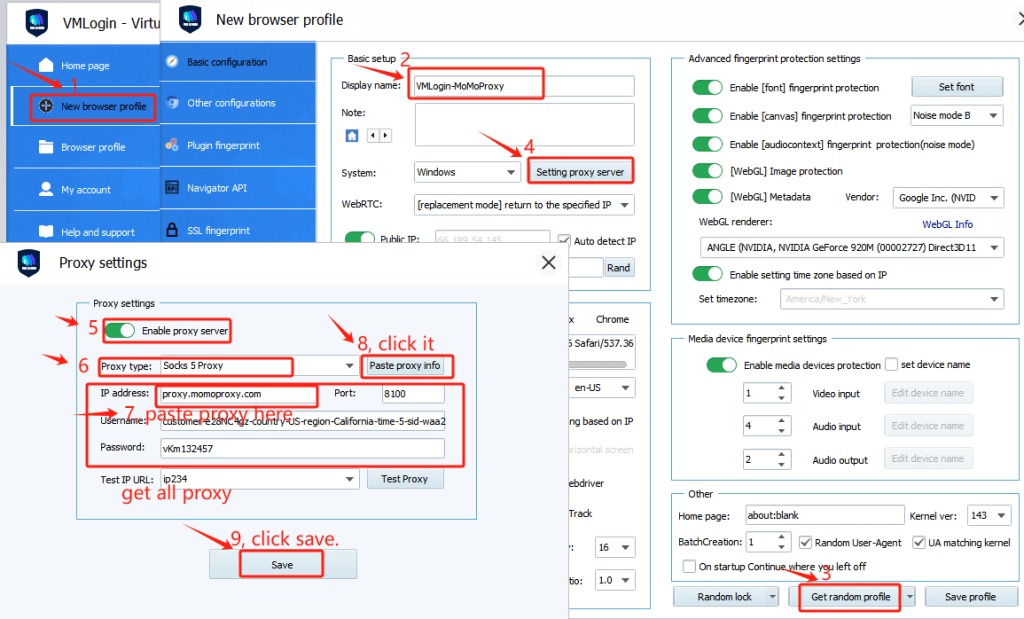
4. Create a New Browser Profile and Set the Proxy IP.
5. Enable Proxy Server and Select "HTTP/HTTPS" or "SOCKS5" protocol
- Paste MoMoProxy details:
- Proxy Type: HTTP/HTTPS/SOCKS5
- Host: [proxy.momoproxy.com]
- Port: [8100]
- Username: [Your MoMoProxy username]
- Password: [Your MoMoProxy password]
- Click "Paste proxy info" to paste all proxy information directly.
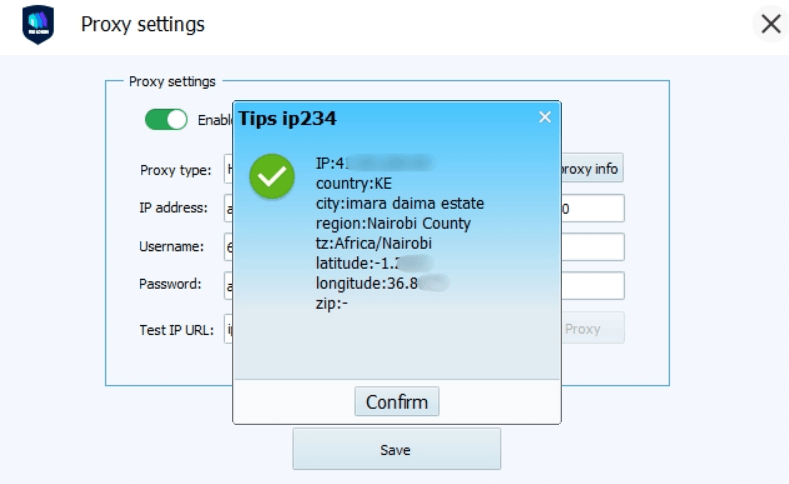
6. Click "Test Proxy" to verify the connection, then save the proxy.
7. Save the profile and launch.
Note: VMLogin browser software itself has no proxy IP service, users need to purchase proxy IP from a third party. Proxy-related tutorials are provided by third-party platforms and unrelated to the VMLogin. Users are strictly prohibited from using VMLogin to engage in any illegal and criminal activities, and users are responsible for the relevant responsibilities caused by using VMLogin.