Download and install VMLogin
- Open the official VMLogin website in your browser (Free Trial Available).
- Click Download / Free trial (select your operating system — Windows).

- Run the installer and follow the on-screen instructions. After installation, the VMLogin authorization window will open.
Register an account with VMLogin
- Click Sign In/Register in the login window.

- If you already have an account, enter your email and password.
- If you don’t have an account, register via email, fill in all the fields, and confirm your email address.
You can also register using third-party service accounts if this option is available in the current version. - Return to the application and log in with your login and password.
Creating your first profile in VMLogin
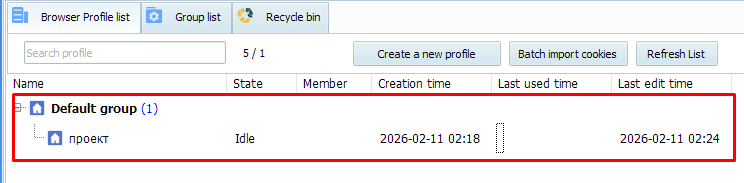
- In VMLogin, open the Profiles / Browser Profile section.
- To create a new profile, click Create profile at the top of the window.

- Enter a profile name (for example, Prosox test).
- Select the browser engine/core: Chrome or Firefox (leave it as the default if you are not sure).
- OS: specify the environment — macOS or Windows.
- User-Agent: leave auto-selection in VMLogin for optimal masking.

- Go to the Proxy section (or the “Proxy Settings” tab).
Important: each profile = one proxy. This is safer.
Preparing proxy data in Prosox
- Log in to your Prosox account. If you don’t have it, you can create one by confirming your email.

- Go to the “Proxy List” page if you already have proxies, or buy proxies if you haven’t done so yet.

- Select plan/proxy type:
Residential (rotational) – for “picky” sites, parsing, advertising. IPs can change.
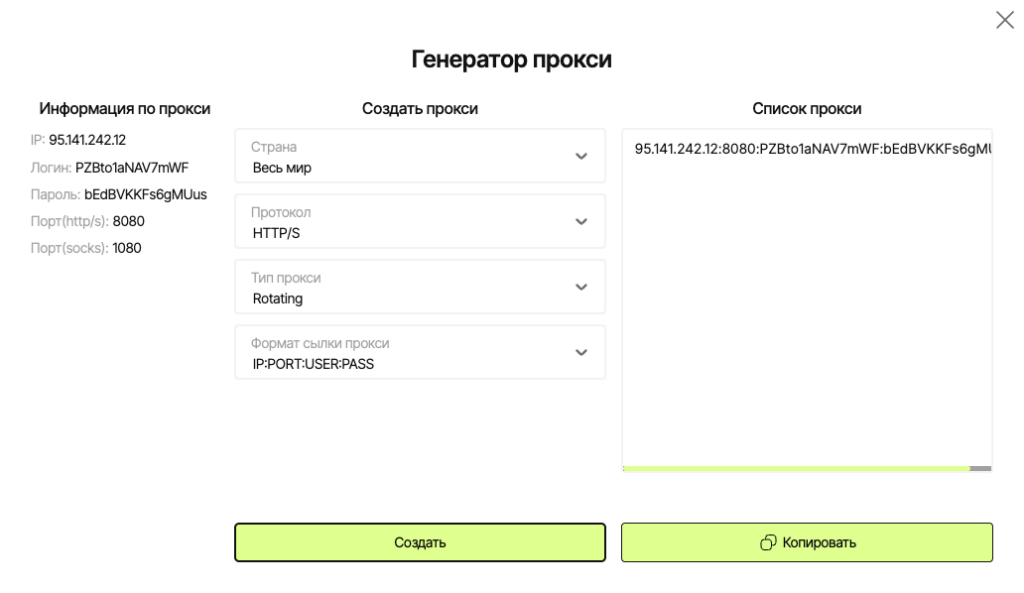
ISP (static) – the same stable IP for long sessions, accounts, payments.
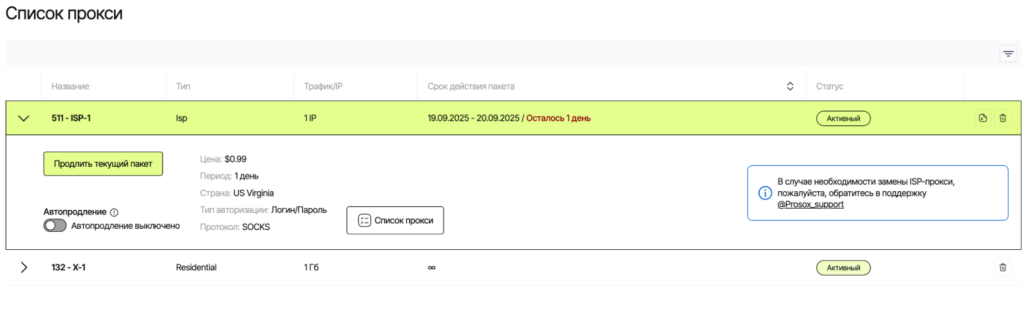
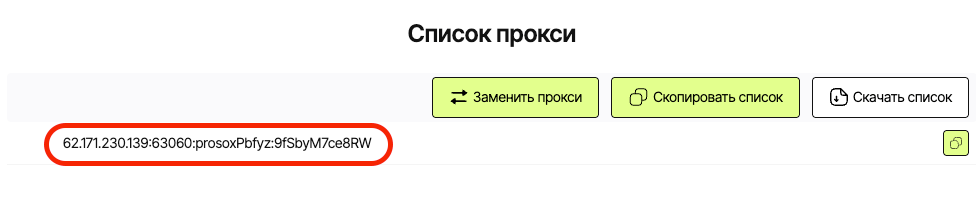
4. Copy the connection parameters.
Example: You purchased unlimited residential proxy servers from Prosox.io and received the following:
0Wva7syVx7Qh:[email protected]:5432
- Fill in the fields:
- In the proxy type field, select HTTPS or SOCKS5 (whichever is specified in your Prosox).
- Host: enter your HOST from Prosox (example: 84.55.4.64)
- Port: 5432
- Login: 0Wva7syVx7Qh
- Password: sikjfc9v
- Proxy check
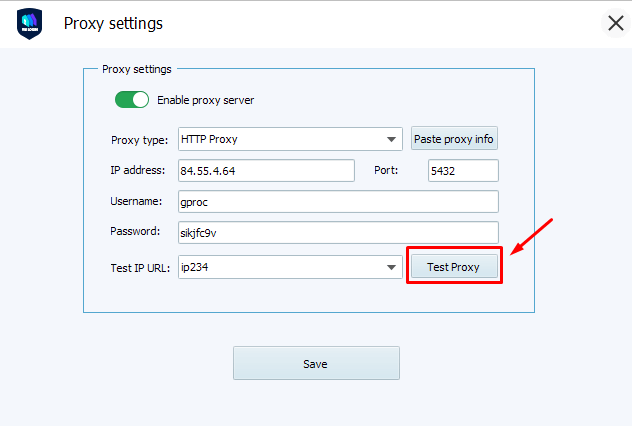
- Green status — everything is ok, let’s move on.
- Red — double-check the data.
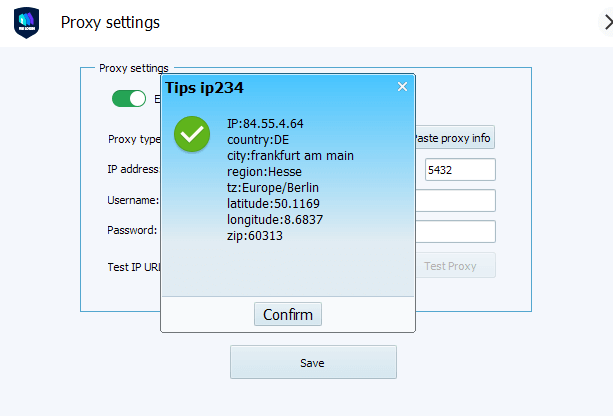
Proxy server verification is already implemented in the Prosox.io personal account. You can check the correct operation from your personal account.
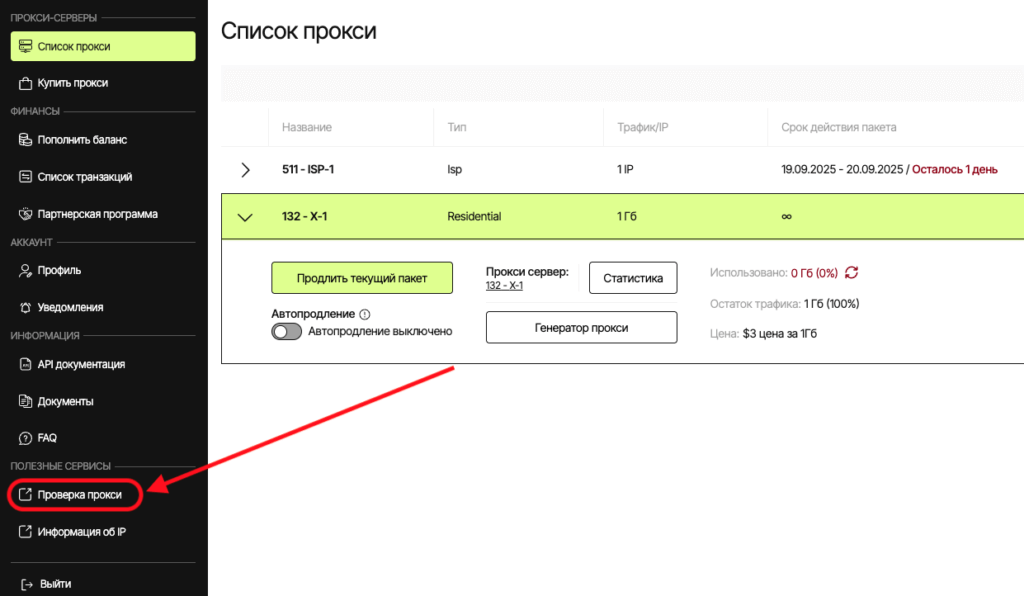
Connecting Prosox ISP (STATIC) Proxies
Example: You purchased USA proxy servers from Prosox.io and received the following:
62.171.230.139:63060:prosoxPbfyz:9fSbyM7ce8RW
- In the proxy type field, select HTTPS or SOCKS5 (whichever is specified in your Prosox).
- Host: paste your HOST from Prosox (62.171.230.139)
- Port: 63060
- Login: prosoxPbfyz
- Password: 9fSbyM7ce8RW
- Click Check proxy.
- Click Save Profile.

Why ISP proxy: you get the same IP every time you run. This is ideal for long sessions: accounts, billing, payments, careful account management without IP “chatter”.
Setting up “Fingerprints” (to Reduce Blockages)
Make the profile as similar as possible to a regular user’s computer:
- WebRTC: turn it off so as not to “expose” the real IP.
- Time zone: set it automatically by IP to avoid inconsistencies.
- Geolocation: synchronize with the IP address.
- System language: select the language that corresponds to the IP country/city.
- Application/browser language: the same as the language by IP.
- Screen resolution: use typical presets — this looks more natural.
- Fonts: leave the standard sets to avoid standing out.
- Hardware “noise”: enable all simulation options — this brings the behavior closer to a real device.
- WebGL (metadata): specify common manufacturer/renderer values (for example, “Google Inc.”, “Apple”).
- WebGPU: configure according to WebGL parameters
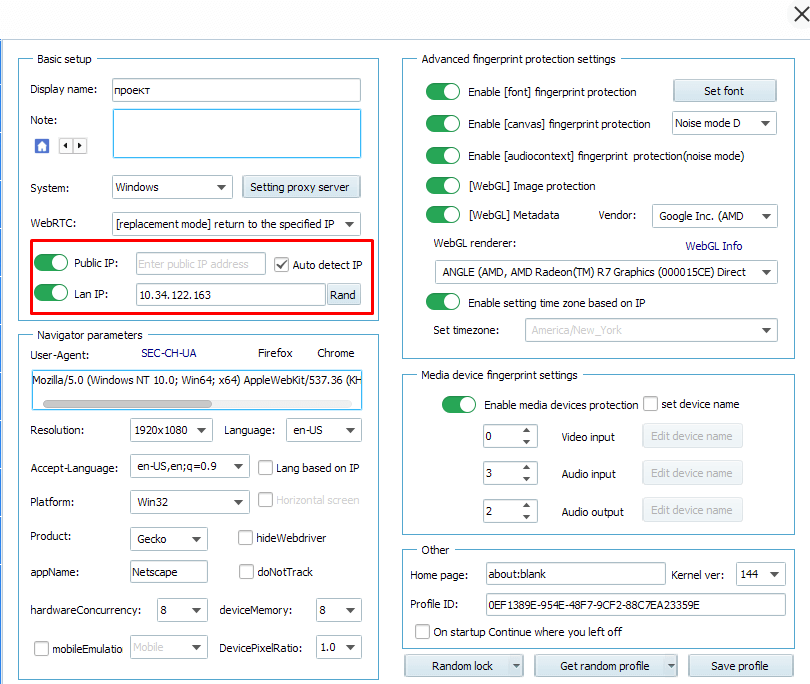
In the end, with these settings, your profile will look like a separate user – with its unique IP, device, language, and behavior pattern.
Pricing Plans
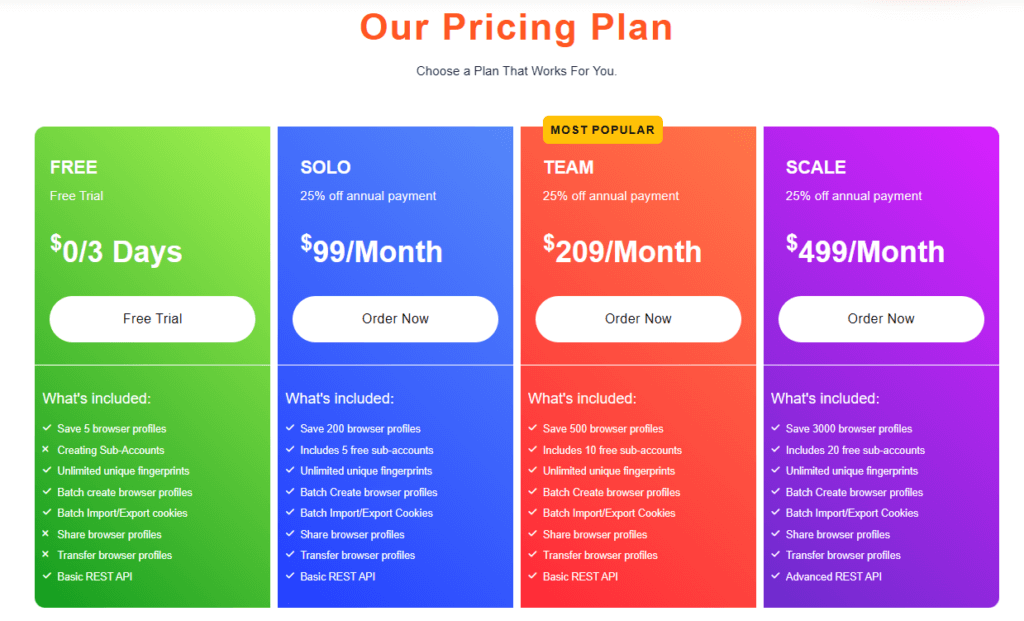
The pricing plan in VMLogin is selected based on the number of profiles and functionality:
- Personal plans start at around $99 per month for approximately 100 profiles.
- Team and corporate plans include hundreds and thousands of profiles, multiple subaccounts, and extended support.
Conclusion
VMLogin is a powerful anti-detection browser with advanced fingerprint settings and teamwork capabilities. When used in conjunction with Prosox proxies, it allows you to safely scale account farms and reduce the risk of blocking.