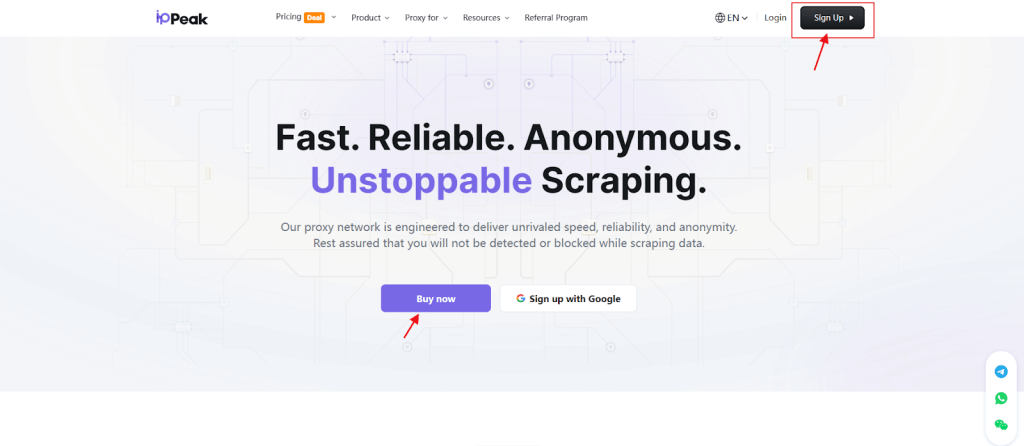
Step 1. Visit the IPPeak Official Website
- Open the IPPeak official website.
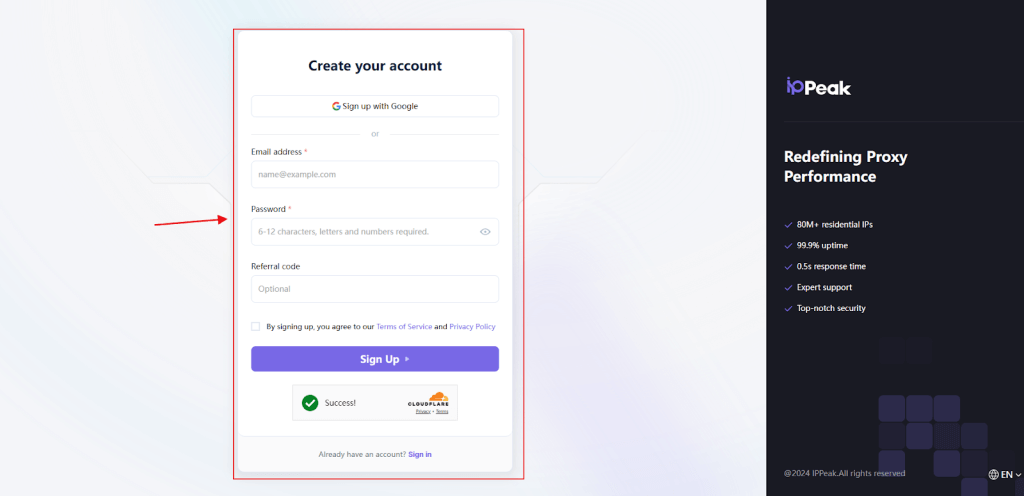
- Register a new account using your email and password.
- If you already have an account, log in directly.
Step 2. Choose a Proxy Plan and Access the Dashboard
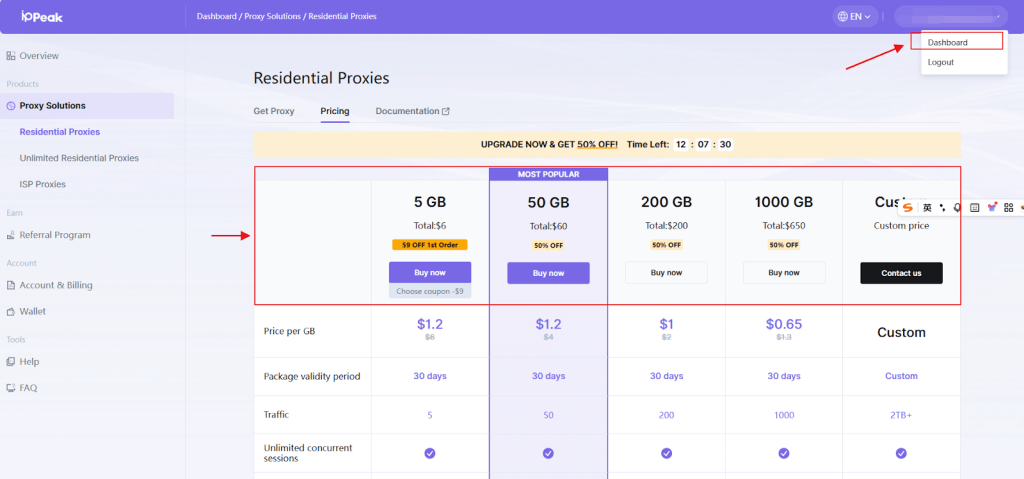
- After logging in, Select the proxy type you need (Residential Proxy is used as an example).
- Complete the purchase process.
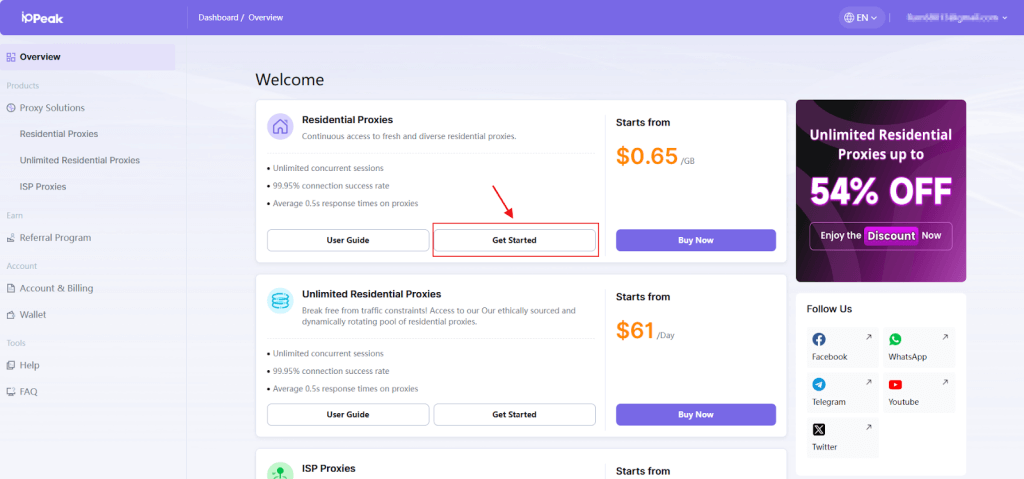
- After payment, click 【Dashboard】, then select 【Get Started】.
- You will be directed to the proxy management and configuration interface.
Step 3. Configure Proxy Parameters
IPPeak supports Username/Password and IP Whitelist authentication.
This guide uses Username/Password authentication as an example.
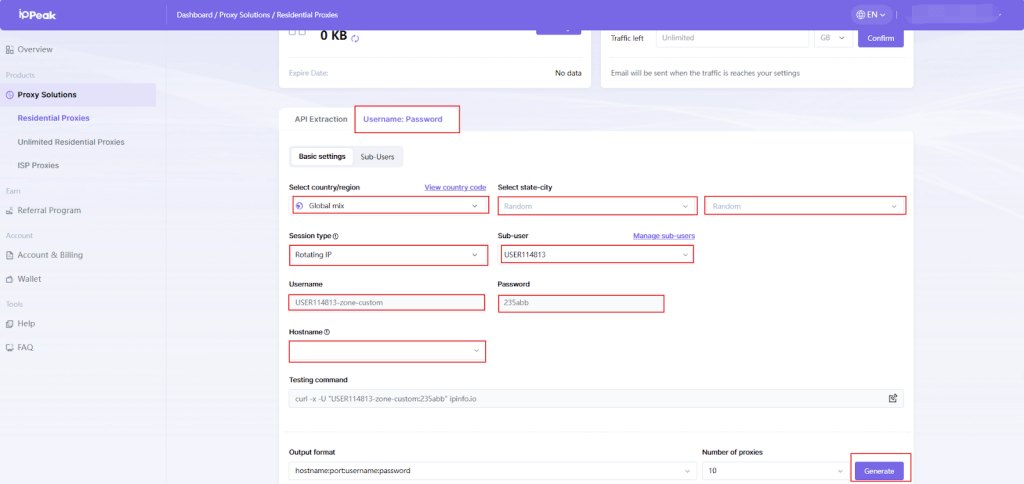
Configure the following settings:
- Target country/region (or random)
- Sub-user
- Session type
- Proxy host
- Proxy port
Step 4. Generate Proxy Credentials
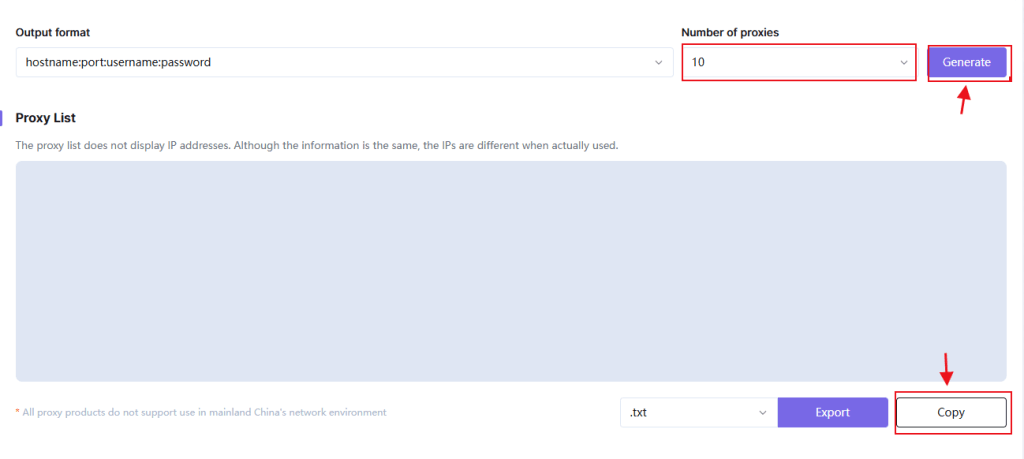
- After the parameters are configured:
- Set the number of proxies required
- Click “Generate”
- Set the number of proxies required
- Copy the generated IP, Port, Username, and Password.
Step 5. Download and Launch VMLogin
- Download VMLogin from the official website (Free Trial Available).
- Install and open the application.
Step 6. Create a New Browser Profile
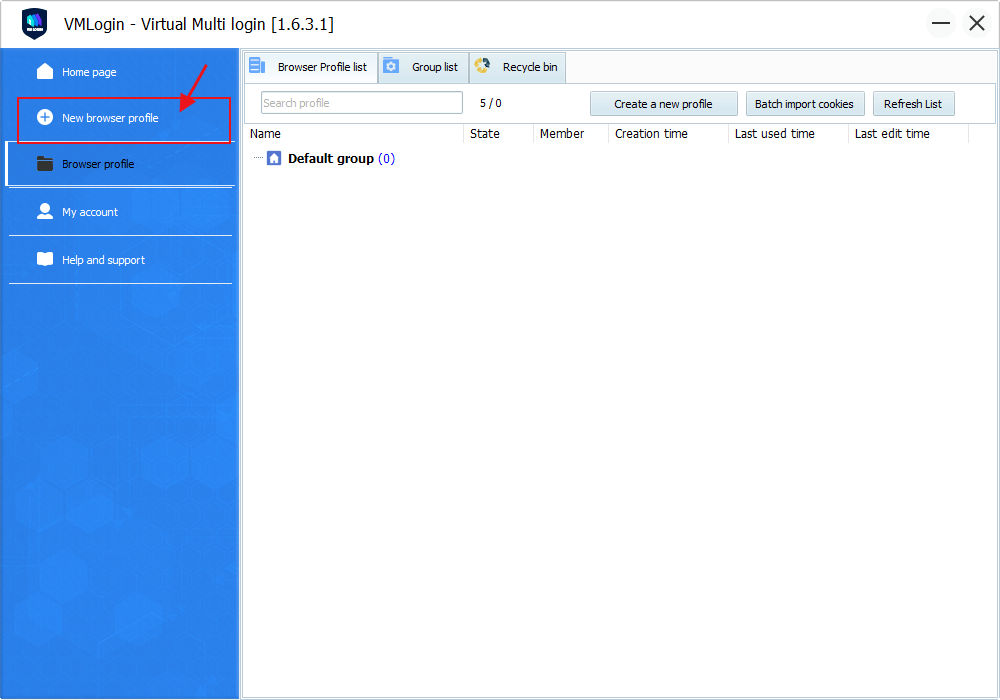
- Click “Create Browser Profile”
Step 7. Configure, Test, and Save the Proxy in VMLogin
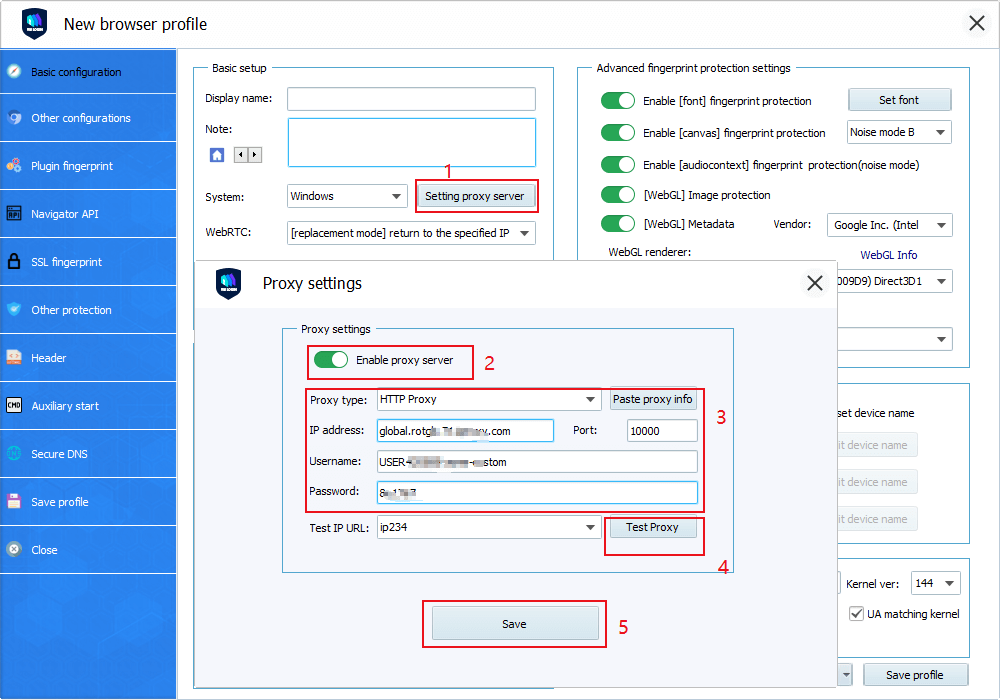
- Go to Basic configuration → Proxy settings
- Enable “Use proxy server”
- Enter the proxy information from IPPeak:
Proxy type: HTTP Proxy (You can also choose SOCKS5 as the proxy type)
IP address: Proxy Host (refer to the proxy information generated in IPPeak)
Port: Proxy Port (refer to the proxy information generated in IPPeak)
Username: Proxy Username
Password: Proxy Password
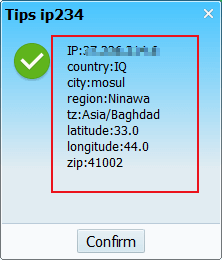
- Click “Test Proxy”
- Confirm that the IP address and location are displayed correctly
- Save the settings
Step 8. Open the Browser and Start Using IPPeak
- Launch the browser profile
- Your IPPeak proxy is now active and ready to use
Note:
VMLogin browser software has no proxy IP service, users need to purchase proxy IP from a third party. Third-party platforms provide proxy-related tutorials and are not related to the vmlogin. Users are strictly prohibited from using vmlogin to engage in any illegal and criminal activities, and users are responsible for the relevant responsibilities caused by using vmlogin.