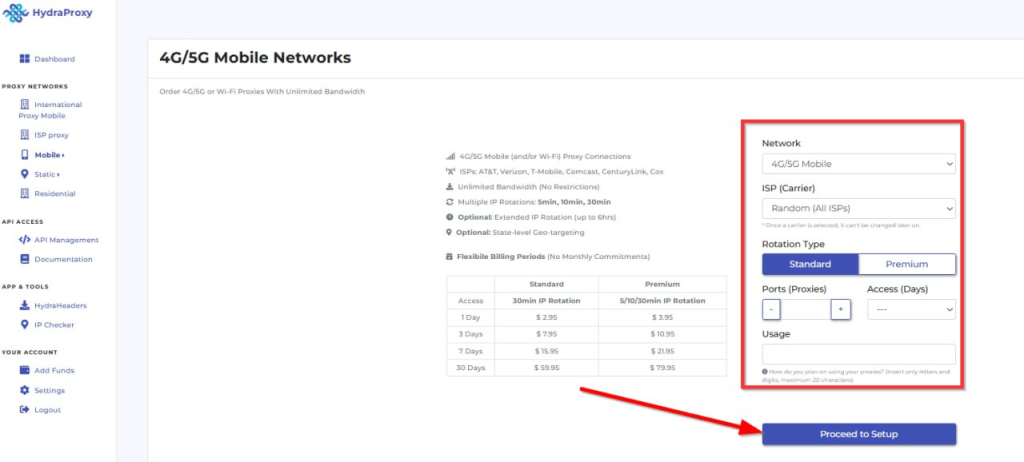
Step 1 – Navigate and set up your HydraProxy account.
(1) Open and log in HydraProxy website.
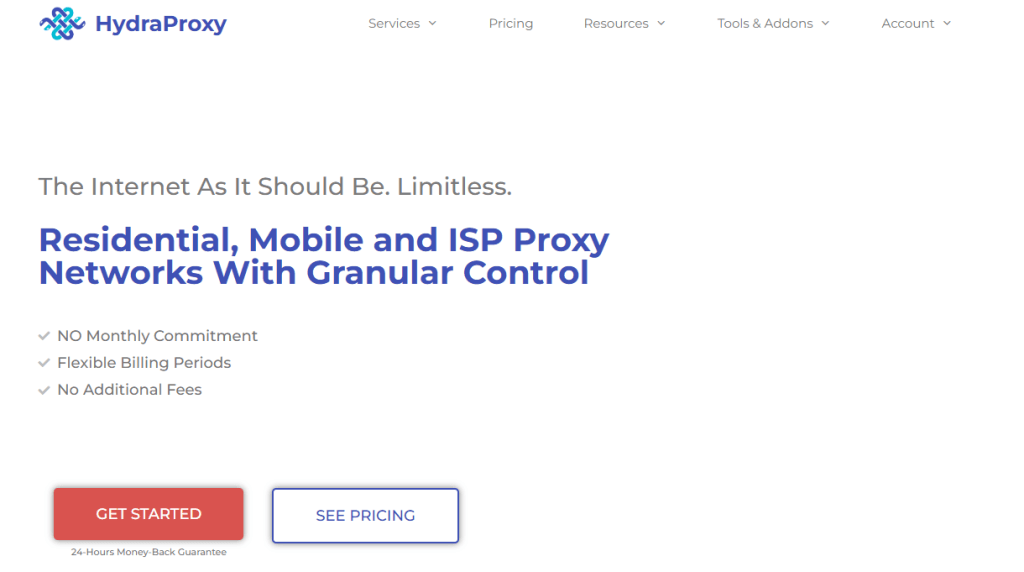
(2) Select the type of proxy you need.
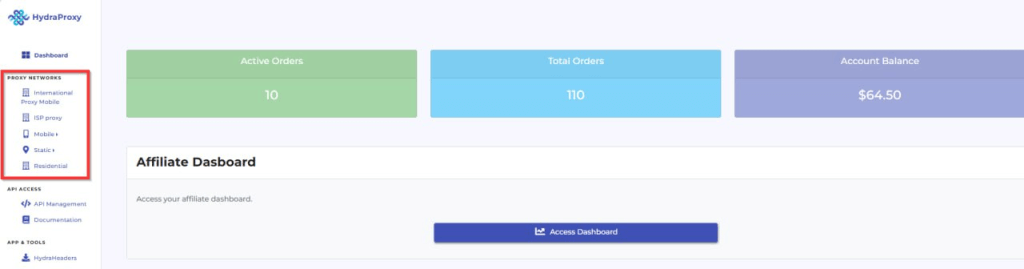
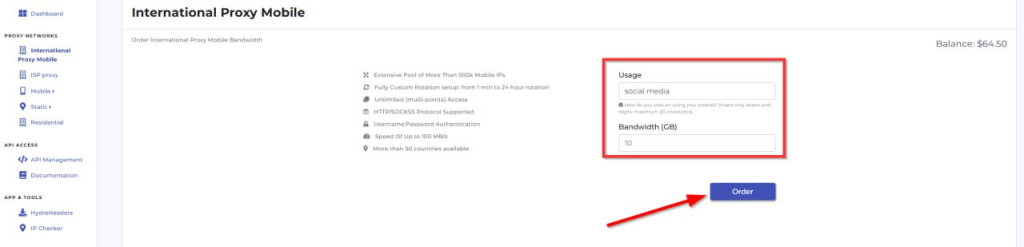
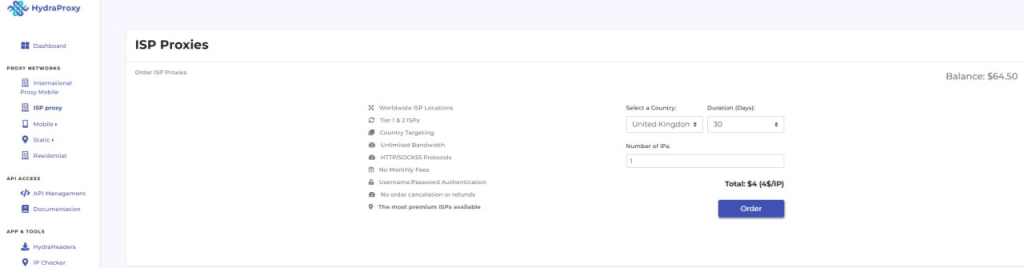
(3) Generate the Proxy.
Step 2 – Add Proxy to VMLogin
1. Download and install VMLogin. (3 Days Free Trial)
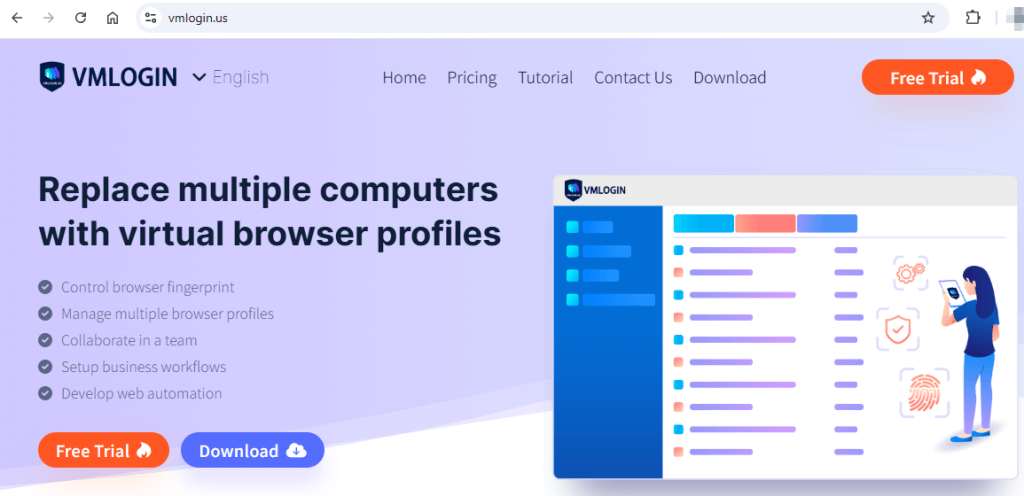
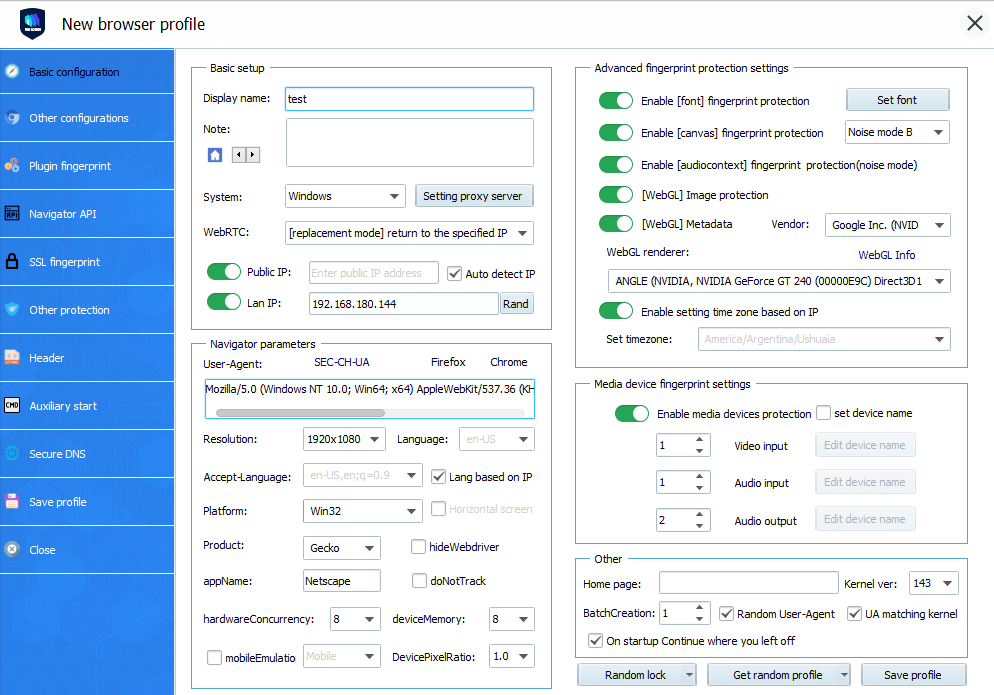
2. Start by launching VMLogin and creating a new browser profile:
(1) Click "Get random profile."
(2) Select the settings that best suit you, such as operating system, screen resolution, language, WebGL vendor, time zone, media device fingerprint, etc., you can also random the profile settings to get new fingerprint.
3. Setting up the proxy server with your browser profile.
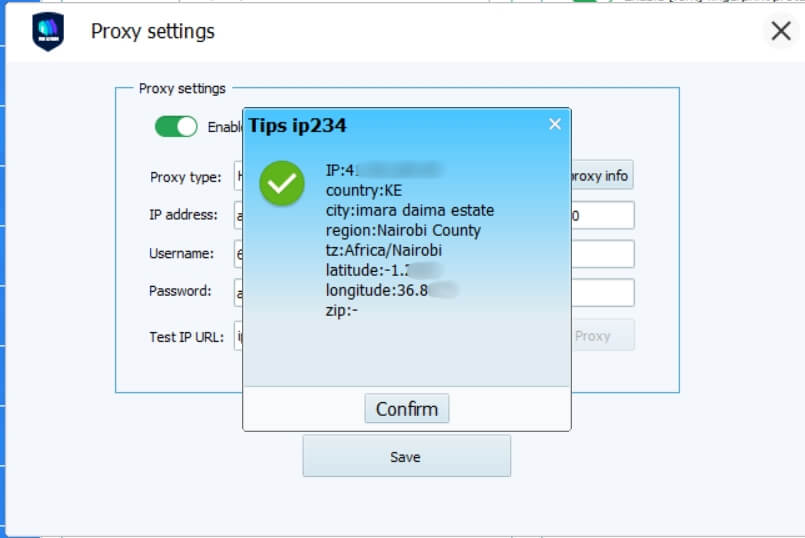
4. Enable proxy server then enter the proxy details (hostname/port/username/password). For mobile proxies leave empty for username and password as they use a whitelisted ip as a form of authentication.
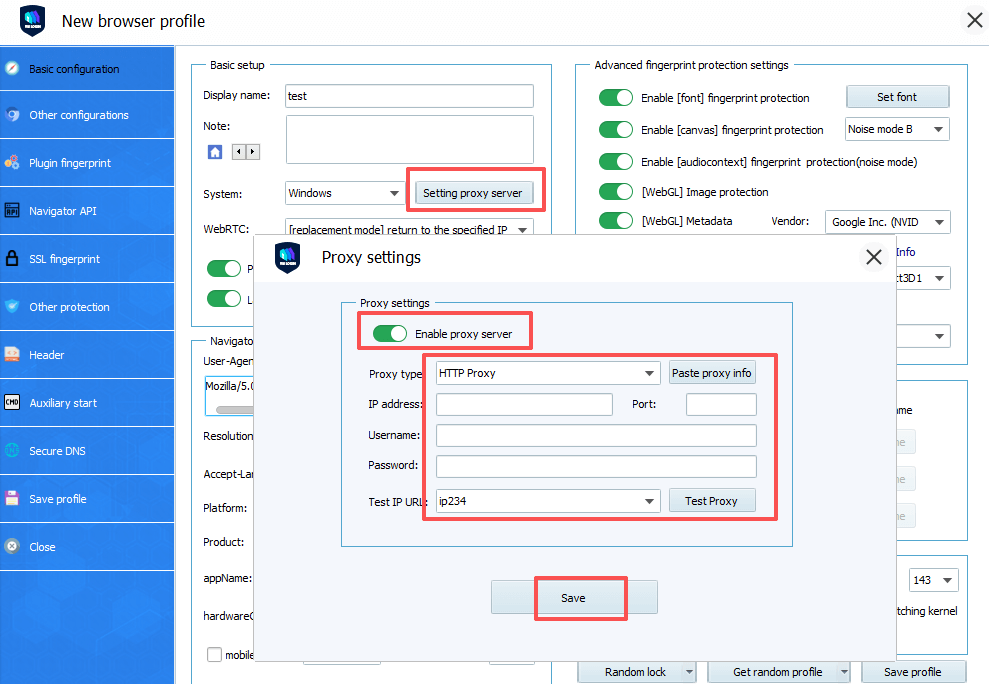
5. Click “Test Proxy” to check if the connection is successful (showing a green checkmark with IP details), click Save and then launch the browser.
VMLogin browser software itself has no proxy IP service; users need to purchase a proxy IP from a third party. Proxy-related tutorials are provided by third-party platforms and are not related to the VMLogin.
Users are strictly prohibited from using VMLogin to engage in any illegal and criminal activities, and users are responsible for the relevant responsibilities caused by using VMLogin.